Setup IPTV
Setup IPTV subscription on any device with our easy step-by-step guide. All IPTV player apps mentioned are the property of their respective developers, and Australia-IPTV is not affiliated with or endorsed by any of them. Any app activation we cover is simply a customer incentive offered to those who subscribe to our service.
 Before installing any app: Go to Settings → My Fire TV → Developer Options → turn on Apps from Unknown Sources, then install the free Downloader app from the Amazon Appstore — this is how you'll sideload Hot Player and the IBO apps using the codes below.
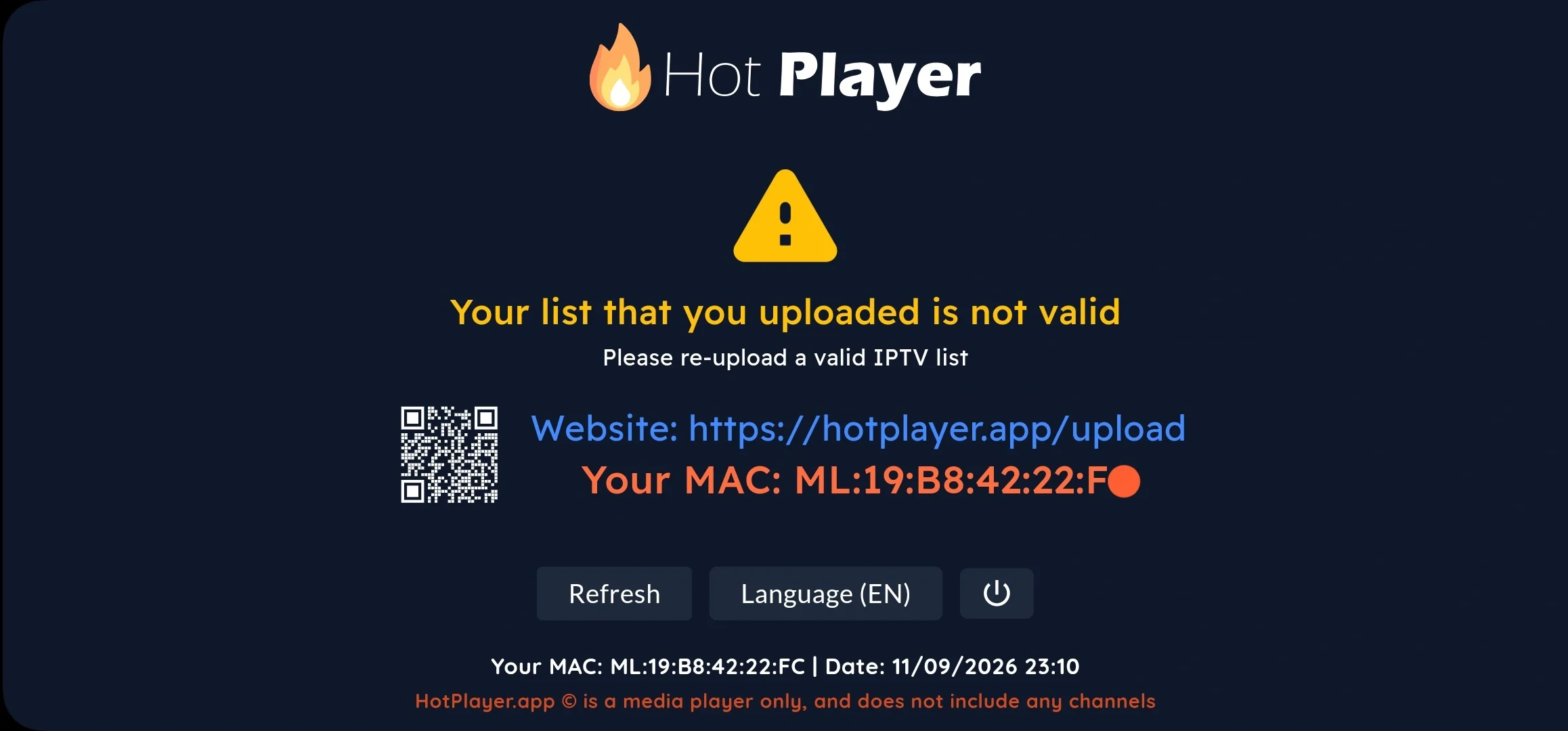
Open Downloader on your Firestick and enter code 395800, then install HotPlayer.
Open Hot Player, your device's MAC address is shown on the main screen. Note it down.
On your phone or computer, visit the 👉 https://hotplayer.app/upload
Enter your MAC address, then paste your M3U Playlist URL, and name the playlist "IPTV Australia".
Save, then restart Hot Player on your Firestick. Your channels and VOD library will load automatically within a minute.
Open Downloader and enter code 923441 to install IBO Player Pro.
Open the app, it displays both a MAC address and a Device Key. Note both down exactly as shown.
On your phone or computer, log into the official IBO Player Pro web portal https://iboplayer.pro/manage-playlists/, login using your MAC address and Device Key.
Select "Add Playlist", paste your M3U Playlist URL, and give it any name.
Restart the app on your Firestick, your channels and VOD should appear within a minute.
Open Downloader and enter code 1171959 to install IBO Player, a lighter version of IBO Player Pro with the same setup flow.
Open the app and note down the MAC address and Device Key shown.
Log into 👉 https://iboplayer.com/ and select manage playlist, login using MAC address and Device Key.
Add your playlist using your subscription M3U playlist URL.
Restart the app and your channels should load automatically.
For more setup tips visit 👉 ibo player YouTube channel
Install TiviMate from the Amazon Appstore, or via Downloader code 272483 or link tivimate.com/apk.
Open TiviMate and select "Add Playlist".
Choose "Xtream Codes Login" the recommended method for full compatibility.
Enter your Server URL, Username and Password exactly as provided by support team. Tick "Include VOD" to also access movies and series.
Save and name your playlist. Your Live TV, Movies & Series, and EPG guide will all populate automatically.
Install " Hot Player / Hot IPTV" via Play Store if listed, or via Downloader using code 395800, or directly from: https://apk.hotplayer.app
Open Hot Player, your device's MAC address is shown on the main screen. Note it down.
On your phone or computer, visit the 👉 https://hotplayer.app/upload
Enter your MAC address, then paste your M3U Playlist URL, and name the playlist "Australia IPTV".
Save, then restart Hot Player on your device. Your channels and VOD library will load automatically within a minute.
Open Downloader App and enter code 923441 to install IBO Player Pro.
Open the app, it displays both a MAC address and a Device Key. Note both down exactly as shown.
On your phone or computer, log into the official IBO Player Pro web portal https://iboplayer.pro/manage-playlists/, login using your MAC address and Device Key.
Select "Add Playlist", paste your M3U Playlist URL, and give it any name.
Restart the app to load your channels.
Install TiviMate from the Google Play Store, or using the downloader App 272483
Open the app and select "Add Playlist" → "Xtream Codes Login".
Enter your subscription Username, Password and Server URL.
Save and name your playlist. Live TV, VOD and EPG all load automatically.

Install XCIPTV Player developed by WWW.OTTRUN.COM from the Google Play Store.
Open the App and enter your Server URL, Username and Password.
Tap SIGN IN and start streaming once your channels load.
Search "Hot Player / Hot IPTV" in your TV's app store and install the App, or via Downloader using code 395800, or directly from: https://apk.hotplayer.app
Open Hot Player, your device's MAC address is shown on the main screen. Note it down.
On your phone or computer, visit the 👉 https://hotplayer.app/upload
Enter your MAC address, then paste your M3U Playlist URL, and name the playlist "Australia IPTV".
Save, then restart Hot Player on your device. Your channels and VOD library will load automatically within a minute.
Search "IBO Player Prp" in your TV's app store and install the App or Open Downloader App and enter code 923441 to install it directly.
Open the app, it displays both a MAC address and a Device Key. Note both down exactly as shown.
On your phone or computer, log into the official IBO Player Pro web portal https://iboplayer.pro/manage-playlists/ login using your MAC address and Device Key.
Select "Add Playlist", paste your M3U Playlist URL, and give it any name.
The App is available to download on Android-based Smart TVs via Google Play Store only.
After installing the App, Open the app → "Add Playlist" → "Xtream Codes Login".
Enter your Server URL, Username and Password exactly as provided by support team. Tick "Include VOD" to also access movies and series.
Save and name your playlist. Your Live TV, Movies & Series, and EPG guide will all populate automatically.
Search "Hot Player / Hot IPTV" in the App Store and download it.
Open the app — your MAC address is shown on the main screen.
Visit the Hot Player upload page and register your MAC address with your M3U URL.
Restart the app — channels load within a minute.
Open Downloader App and enter code 923441 to install IBO Player Pro.
Open the app, it displays both a MAC address and a Device Key. Note both down exactly as shown.
On your phone or computer, log into the official IBO Player Pro web portal https://iboplayer.pro/manage-playlists/, login using your MAC address and Device Key.
Select "Add Playlist", paste your M3U Playlist URL, and give it any name.
Search "IBO Player" in the App Store and download.
Note your MAC address and Device Key.
Log into 👉 https://iboplayer.com/ and select manage playlist, login using MAC address and Device Key.
Add your playlist using the M3U playlist URL.
Restart the app and your channels should load automatically.
For more setup tips visit 👉 ibo player YouTube channel
Download UHF-Love your IPTV directly from App Store.
Launch UHF and tap Continue to the application, press on Create playlist on the left, then choose Xtream playlist on the right.
Enter your subscription Server URL, Username and Password then click create.
Download Hot Player for Windows or Mac from the official Hot Player website and install it.
Open the app — your MAC address is shown on the main screen.
Visit the Hot Player upload page and register your MAC address with your M3U URL.
Restart the app — channels load within a minute.
Download for Windows or Mac from the official IBO Player pro site 👉 https://iboplayer.pro/
Open the app, it displays both a MAC address and a Device Key. Note both down exactly as shown.
On your phone or computer, log into the official IBO Player Pro web portal https://iboplayer.pro/manage-playlists/ login using your MAC address and Device Key.
Select "Add Playlist", paste your M3U Playlist URL, and give it any name, restart the app and your channels will load automatically.
Download for Windows or Mac from the official IBO Player site 👉 https://iboplayer.com/
Note your MAC address and Device Key.
On the same website, select manage playlist, login using MAC address and Device Key, add your playlist using your subscription M3U playlist URL.
Restart the app and your channels should load automatically.
Download UHF-Love your IPTV directly from App Store.
Launch UHF and tap Continue to the application, press on Create playlist on the left, then choose Xtream playlist on the right.
Enter your subscription Server URL, Username and Password then click create.
Download via Play Store if available, or sideload via Downloader (code 395800) or directly from: https://apk.hotplayer.app
Open the app and note the MAC address shown.
Visit the Hot Player upload page https://hotplayer.app/upload, enter your MAC address and press NEXT, then enter your subscription M3U playlist URL, give your playlist a name and press SAVE.
Restart the app and channels will load within a minute.
Open Downloader App and enter code 923441 to install IBO Player Pro, or install the APK file directly from https://ibopro.app/ibopro.apk
Open the app, it displays both a MAC address and a Device Key. Note both down exactly as shown.
On your phone or computer, log into the official IBO Player Pro web portal https://iboplayer.pro/manage-playlists/, login using your MAC address and Device Key.
Select "Add Playlist", paste your M3U Playlist URL, and give it any name.
Install XCIPTV Player developed by WWW.OTTRUN.COM from the Google Play Store.
Open the App and enter your Server URL, Username and Password.
Tap SIGN IN and start streaming once your channels load.
Find your MAC address — usually printed on a sticker on the underside of the box, or under Settings → System Info on screen.
Send us your MAC address via WhatsApp or email so we can register your device on our provisioning panel.
We send you back a Portal URL matched specifically to your device.
Go to Settings → System Settings → Servers → Portals, and enter the Portal URL we sent you.
Press Home, then restart the box (or choose "Restart Portal" in the menu). Your channels and VOD should load automatically.
Common setup IPTV questions
The questions we hear most often from new subscribers, across every device.
Getting Started
App Costs & Licences
Credentials & Login Details
Setup IPTV Troubleshooting
Devices & Compatibility