
IPTV Smarters Pro is a media player, so UK viewers need a compatible device and access details from a properly licensed provider before streaming. The app handles video playback; the IPTV service provider supplies the viewing access and content. This practical UK setup guide is for you if you already have those details and want to use them on your chosen device.
Setup is easier when you know whether your provider gave you a server URL, username, and password or an M3U playlist URL. Those details determine which connection method you choose. They do not come from the player, and installing it does not obtain a viewing subscription or channels for you.
Use this guide to identify the right app route, enter your access details, and deal with common setup problems. Start with the device you will actually watch on, since the installation route differs between Windows, Android TV, and LG webOS.
Key Takeaways
- Have current provider access details ready before setup.
- Choose an app version made for your device.
- Use a licensed provider for the content you watch.
- An M3U playlist and an Xtream Codes login use different fields.
- Guide listings appear only when the provider supplies guide data.
What the Media Player Includes
The app plays content from a provider, but it does not come with channels or account credentials. Your provider supplies the viewing access and the material that appears in the player. That distinction matters when you first open it: a newly installed app can be ready to configure while showing no channels, films, or series.
IPTV Smarters Pro does not provide channels, login credentials, playlists, or guide data. It can load live TV, films, series, and an electronic program guide (EPG) when the provider supplies them. An EPG is an electronic program guide that displays scheduled channel listings when the provider supplies guide data.
The player displays provider-supplied content; it does not create a channel package or viewing account.
Think of the app as the playback layer between your device and the provider’s service. The provider decides what content is available to your account, which connection details you receive, and whether guide information is included. A playlist may show live channels without films or series, or it may contain several categories.
The player’s interface can organize content into sections such as live TV, movies, and series. Those labels do not mean every provider supplies every category. What you see depends on the account and playlist linked to the app, along with any content your provider has made available.
Guide listings depend on separate data. A channel stream can work even when the EPG is missing, and a guide may show schedules only for channels the provider has matched with guide information. The supported content categories are therefore tied to what the provider supplies, not a built-in catalogue.
Before opening the player, locate the provider’s access details and check which connection method they support. Keep the information somewhere you can copy it accurately. Get the provider’s login or playlist details before treating the app as ready to watch.
Is IPTV Streaming Legal in the UK?
IPTV is legal in the UK when the provider is licensed to broadcast the content. The rights matter, not the fact that television arrives through an internet connection. In 2026, the rule remains that a provider must have permission for the channels and on-demand material it offers.
Installing a media player does not make an unauthorised stream lawful. IPTV describes a way to deliver television over internet protocol. The same delivery method can carry content that is properly authorised or content that is not, so the technology alone does not determine whether a service is lawful.
The Copyright, Designs and Patents Act 1988 is a key UK copyright law. It forms part of the legal framework for copyrighted works, including television programs and films. For your decision, focus on whether the service has the rights to distribute the specific material in its package.
A provider’s claims about channel count or video quality do not establish that it has permission to broadcast those channels. Check whether the service is authorised for the live channels, films, and series you intend to watch. Be cautious if a provider cannot clearly explain its rights or the service behind its offer.
Also separate the app from the service. A media player can be a neutral tool for playing a playlist, while the legality of the content depends on the provider’s permissions. The app’s presence in an official store does not confirm that every service used with it is authorised.
Use the same standard for on-demand titles as for live broadcasts. Permission for one channel or program does not automatically establish permission for every other item in a package. Check authorisation for the actual content you plan to watch, not just whether the app installs successfully.
How to Set Up IPTV Smarters Pro
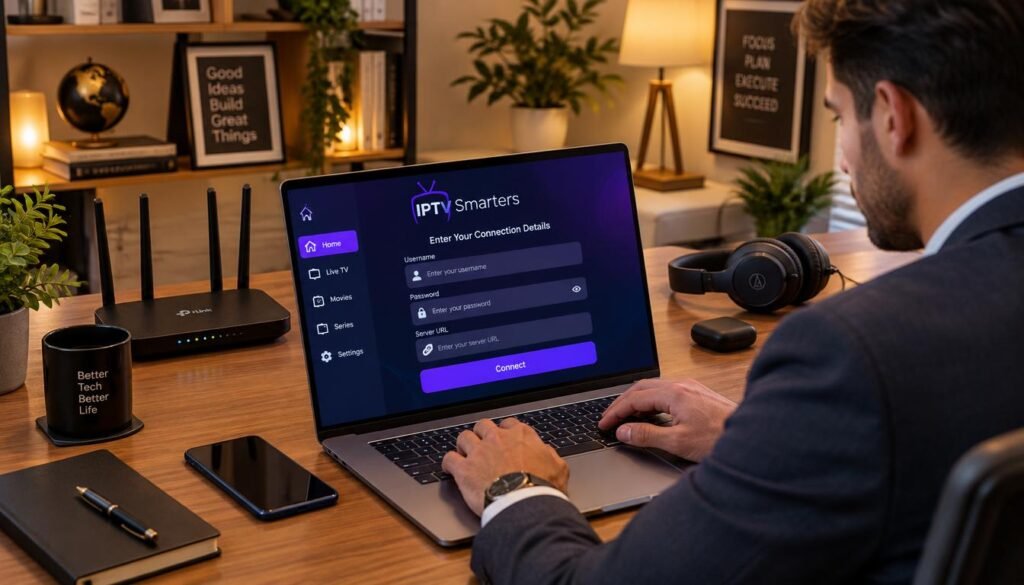
Before opening the app, have the access details for your chosen connection method ready. Use the exact method your IPTV service provider supports, since the player needs either Xtream Codes details or an M3U playlist URL. Download IPTV Smarters Pro through the official app store for your device or the developer’s website.
Keep the provider’s details unchanged as you enter them. A space, missing character, or copied punctuation mark can prevent the player from connecting. The connection options do not supply viewing access by themselves; they let the app use details already issued for your account.
- Obtain the correct app for your device from its official store or the developer’s website.
- Open the app and accept its terms.
- Choose the provider’s connection method.
- Enter the supplied details and allow the playlist or guide to load.
| Method | What to enter | Where the details come from |
|---|---|---|
| Xtream Codes API | Server URL, username, and password | IPTV service provider |
| Remote M3U | One playlist URL | IPTV service provider |
| Local M3U file | Select the playlist file | IPTV service provider |
Xtream Codes API login
Choose the Xtream Codes API option if your provider supplied a server URL, username, and password. Enter each value in its matching field. Some screens also ask for a playlist name, which is a label to help you identify the account on that device.
The player uses those separate fields to connect with the provider. A server URL is not the same as a playlist URL, so do not paste one into the other field. Once the details are accepted, give the app time to load the available categories and any guide data.
M3U playlist setup
Select the remote M3U option when your provider gave you a playlist URL. Enter the full URL in the playlist field. A local M3U file uses a different route: select the file stored on the device rather than typing a remote address.
Some M3U URLs contain a long string of characters or punctuation. Copy the whole address, including any characters at the end, and avoid adding spaces before or after it. Copy the provider’s details exactly, including punctuation and any characters at the end of a URL.
Install the App on Windows and Android TV
Windows users should start by checking the app’s system requirements, while Android TV users should verify the exact listing on their device. The publisher matters because similarly named apps may come from different developers. IPTV Smarters Pro for PC should be obtained from the developer’s website when using its desktop version.
Do not assume that every app called Smarters is the same product. App title, publisher, version, and device support can differ between listings. Check those details before you install a version that will hold your provider’s access information.
Windows desktop installation
Download the desktop version from the developer’s website rather than treating an APK archive or unrelated download page as an official source. The Windows app supports M3U playlists and Xtream Codes API login in 2026. Enter the M3U URL or the server address, username, and password exactly as supplied.
The Windows listing gives minimum requirements of 2 GB memory, 1 GB video memory, and DirectX 9. It lists an approximate size of 83.8 MB, with access to the internet and all system resources. These are listing details for that Windows version, so compare them with your computer before installing.
The permissions shown by a listing describe the access requested by that app. They do not, by themselves, explain a particular data practice. Read the permission details and the listing information before you decide whether the requested access makes sense for your device.
Android TV and Fire TV installation
To learn how to download IPTV Smarters on Android TV, open the device’s official store and search its available listings. A separate Android listing titled Smarters Pro by Tech Smarters is version 5.1, updated October 31, 2025. It names Android TVs and Fire TV sticks as supported devices.
That listing specifies Android 9.0 and a size of 31.46 MB. Its version, requirements, and size apply to that particular listing, not to every app with Smarters in its name. An APK result with a similar title is not proof that it comes from the publisher you intend to use.
- Verify the exact app title.
- Verify the publisher shown by the official store.
- Compare the listed requirements with your device.
- Review requested permissions before installation.
After installation, use the provider’s connection method and access details for that account. If your device’s store shows several similarly named options, compare the publisher and version carefully rather than choosing by title alone. Do not install an APK solely because its name resembles the app you intend to use.
Can You Install It on an LG Smart TV?
You can use an LG smart TV if the app is available in its regional Content Store and supports the TV. Availability depends on the television’s model and region, so an app listing seen in another country may not appear on your set. In 2026, IPTV Smarters Pro may be unavailable in some countries’ LG Content Stores.
If the app is missing from your regional store, you cannot install it through that same store route. Check the listing on the television itself, since store availability can vary by region. This answers whether you can put IPTV on your LG smart TV: yes, when the app is listed for your region and model.
Check the LG Content Store
Open the LG Content Store and search for the app by its exact name. Confirm that the listing supports your TV model and is available in your region. LG TV app installation requires signing in for models from 2021 through 2025, so have the account used on the television ready when prompted.
The available app selection can differ between models and countries. If the store does not show the app, that store route is not available for your television. You can also consult this Samsung and LG smart TV setup guide for related television installation information.
Enter the Provider’s Details
When the installed version supports Xtream Codes setup, enter the playlist name, username, password, and server URL supplied by your IPTV service provider. The playlist name helps identify the connection in the app; the other fields connect it to the provider account.
Check the screen’s labels before entering each value. A playlist name is not a replacement for the server URL, and the URL needs to match the provider’s current address. Confirm the TV’s region and model before relying on a particular app-store listing.
Choose Between an IPTV Player and VLC
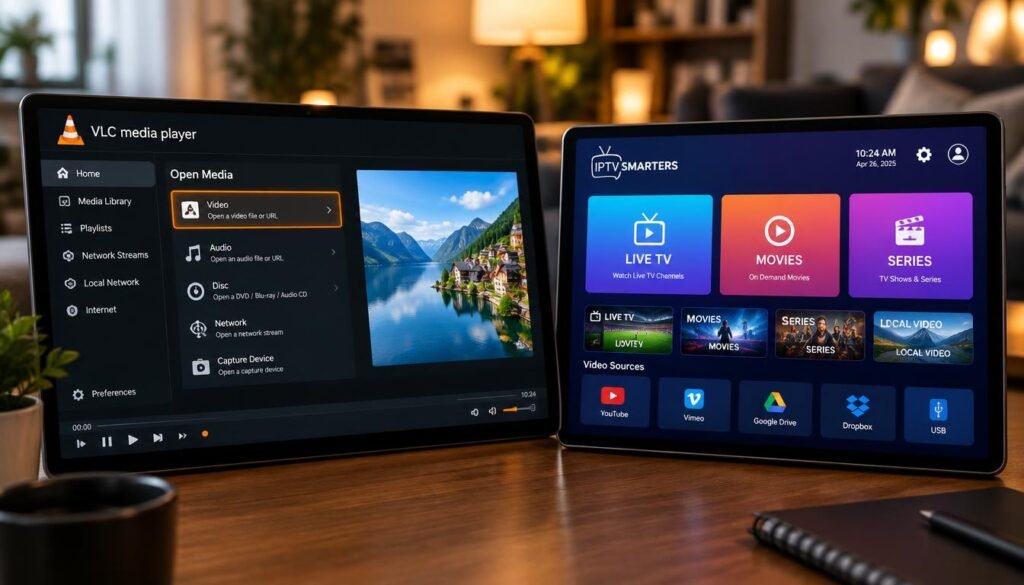
VLC is a workable choice for basic M3U playback, but it does not provide an Xtream Codes login screen or built-in EPG. Choose by input: VLC suits you if your provider supplies an M3U playlist and you only need playback. A player with the connection features you need is more practical when your provider uses another method.
VLC can play an M3U playlist, but it lacks built-in EPG and an Xtream Codes screen. Xtream Codes uses separate server URL, username, and password fields. An M3U playlist uses a single URL, which VLC can open without those separate login fields.
| Option | Input format | Xtream Codes login | Built-in EPG |
|---|---|---|---|
| IPTV Smarters Pro | M3U URL or Xtream Codes | Yes | Depends on provider guide data |
| VLC | M3U playlist | No | No |
| Provider-supplied M3U playlist played in VLC | One M3U URL | No | No |
For a simple stream from a playlist URL, VLC offers a direct playback route. It may be enough when you do not need channel categories or a schedule guide in the player. The provider still controls the playlist and the content available through it.
If your account uses an Xtream Codes login, select a player that offers those three separate fields. Reformatting those details as an M3U URL is not a substitute unless the provider also issues a playlist URL. Use the connection format your account was set up to provide.
An EPG can help you see scheduled listings alongside channels, but the player needs guide data from the provider. IPTV Smarters Pro can display that guide when the provider supplies the data. VLC does not add an EPG screen to an M3U stream.
There is no need to choose a player by a broad claim that one is best for every viewer. Start with the provider’s actual connection format and decide whether you need an in-app guide. Match the player to the connection method your provider actually supplies.
Fix Login, Playlist, and Playback Problems
A failed login does not always mean the app is broken, since incorrect or outdated provider details can cause the same symptom. Start with the details you entered, then check whether the provider account remains active. An old playlist address may also stop working after the provider changes or expires it.
A playlist URL can stop working when the provider changes or expires it. An IPTV playlist from 2025 may no longer be current in 2026, so ask the provider for the current URL. This is especially relevant when the app opens normally but shows no channels.
Rejected credentials or an empty list
Check the spelling of the username and password, along with spaces copied at the start or end. Confirm that the account is active with the IPTV service provider. If the provider has replaced a server address or playlist URL, an older saved value will not connect to the current service.
Use this quick check to separate common symptoms from the next action. It helps you avoid changing working settings when only one feed or account detail needs attention.
| Symptom | Check | Next action |
|---|---|---|
| Login rejected | Recheck details and account status | Confirm the account with the provider |
| No channels | Verify the playlist URL | Ask whether the URL has changed |
| Guide missing, channels play | Check the EPG feed separately | Ask the provider to confirm feed status |
Playback and EPG problems
If playback stops or buffers, check whether the device has a working internet connection before changing account details. Restarting the device and checking for an outage can help identify a connection fault. Ofcom’s broadband and Wi-Fi advice covers checks for slow or unreliable service.
A missing EPG does not necessarily mean the channels are offline. XMLTV-based EPG data can fail separately from channel streams, so a guide problem may need a different fix from a playback issue. Ask the provider whether its guide feed is available and current.
- Check the device’s internet connection.
- Check the app and the saved playlist or login details.
- Ask the provider to confirm the account or feed status.
Note whether the problem affects one channel, the whole playlist, or only scheduled listings. That detail helps distinguish a device connection issue from a provider feed problem. If the provider confirms the details are valid and playback still fails, record the device, app version, and exact error before requesting support.
What Does Setup Cost?
The Windows listing for Smarters IPTV Pro offers a free 1-week trial, then requires device activation. That trial applies to that listing, not automatically to every app with a similar name. The listing allows installation on up to 10 Windows devices, which does not mean 10 streams can play at once.
The player and an IPTV service provider’s subscription are separate costs. The Windows trial concerns the app; it does not cover a provider’s service charges. Any provider subscription follows that provider’s plan and terms, so do not treat the trial as a free viewing package.
Before paying for the player, read the exact listing and its activation terms. The title and publisher should match the version you intend to install, since similarly named apps may set different terms. Reviews can describe user experiences with an app, but they do not establish whether a provider is licensed.
Check the provider’s plan separately for its price, renewal terms, and account conditions. Do not assume that an app fee includes access to channels or on-demand content. Likewise, installing the player on several Windows devices does not establish how many devices the provider permits to stream at the same time.
The Windows listing’s one-week trial gives you a defined period to assess that app before activation. It is not a promise of free ongoing use, and it does not set the terms of any separate service. Keep the app’s activation terms distinct from the provider’s access terms.
Compare the exact app title and publisher with the listing on your device, then read what activation covers. For a provider, review its own conditions before sharing payment details or account information. Check the exact app and provider terms separately before committing to either charge.
Conclusion
A smooth setup starts with the right app for your device and valid access details for the content you are authorised to watch. The key choice is matching the provider’s connection method to a compatible player, rather than expecting the app to supply a channel package.
Use an authorised IPTV service provider and keep its current login or playlist details available. If the device’s app store offers several similarly named versions, use the listing that matches your device and intended player.
Your next step is practical: ask your provider to confirm the current connection details for your device before you sign in.