How to install IPTV on Smart TV

Installation Guide for IPTV on Smart TV: Samsung, LG, Android

When it comes to installing IPTV on Smart TV, three applications stand out as the most common, stable, and useful for everyday users:

Hotplayer,

IBOPlayer

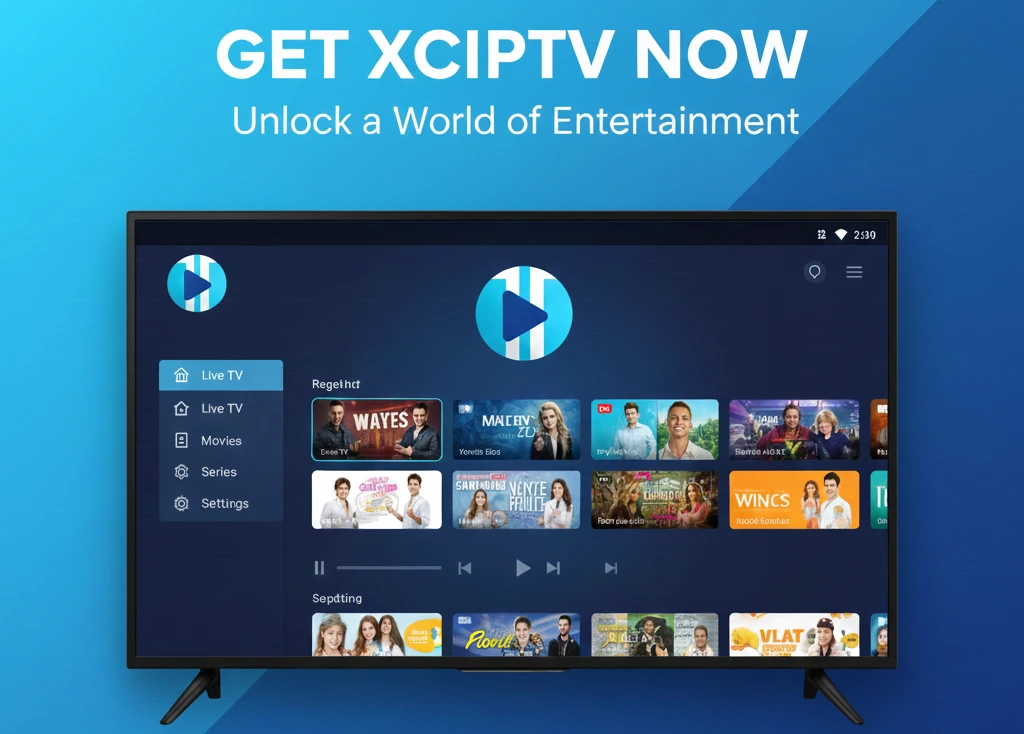
XCIPTV

These apps are widely trusted because they offer smooth performance, easy setup, and excellent compatibility across Samsung, LG, and Android TVs, making IPTV on Smart TV effortless and enjoyable for streaming live channels, movies, and series.

Most Popular Applications to Use IPTV on Smart TV

Hotplayer🔥

Experience the ultimate entertainment with HotPlayer, your go-to app for enjoying playlists and watching your favorite content. Step into the forefront of media player innovation with HotPlayer, a leader in entertainment solutions.

Download HotPlayer now from the Roku Store, LG TV Store, Samsung TV Store, and Google Play Store, and dive into a new era of entertainment!

IPTV on Smart TV

Step 1: Download the App

💡 Tip:

If you’re using the Downloader app, you can install Hotplayer directly with the code 395800.

2. Open the App & Get Your MAC Address

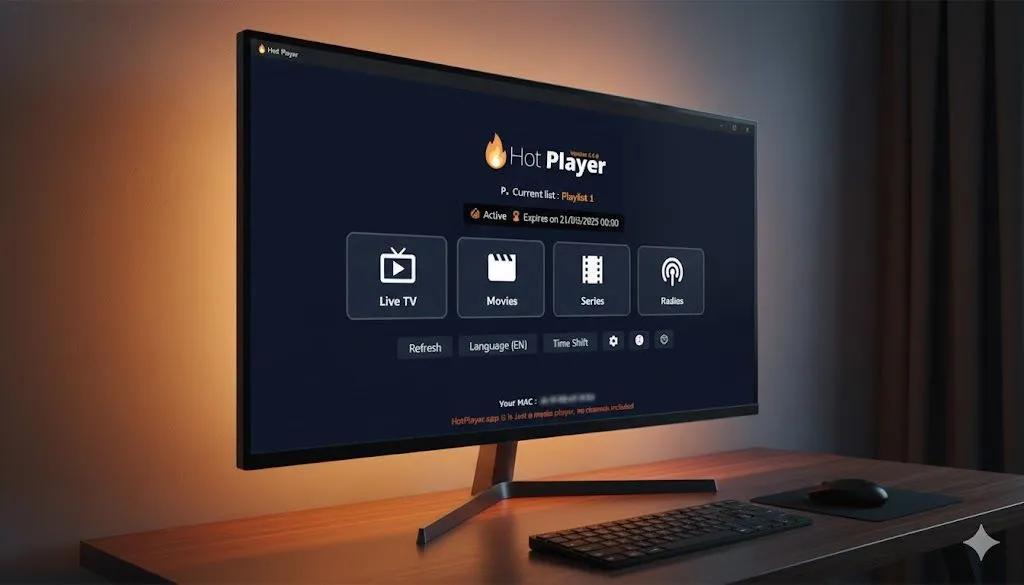
  • Launch the Hotplayer app on your device.

  • On the main screen, note down the MAC address displayed (this is unique to your device).

3. Visit the Official Hotplayer Website

  • On your phone or computer, go to: https://hotplayer.app/upload.

4. Enter Your Details

  • In the upload form, enter:

    • MAC Address (from your app screen).

    • M3U Playlist URL (the link provided by us).

Make sure the M3U url starts with http:// and not https://

    • Playliste name : Australia-IPTV

5. Confirm & Activate

  • Click Upload / Activate.

  • Restart the Hotplayer app on your TV.

  • Your channels and VOD library should now appear automatically.

IBO Player

IBO PLAYER IPTV on Smart TV

Step 1: Install IBO Player

Step 2: Activate the App

    • Launch the iboplayer app on your device.

    • On the main screen, note down both:

      • MAC Address (unique to your device)

      • Device Key (displayed in the app alongside the MAC address)

Step 3: Enter Your Details

    • In the activation form, enter:

      • MAC Address (from your app screen)

      • Device Key (from your app screen)

      • M3U Playlist URL (the link provided by us)

Make sure the M3U url starts with http:// and not https://

Step 3: Upload Your IPTV Playlist

  • Once uploaded, your channels and movies will appear in the app.

  • You can organize playlists and favorites directly from the app interface.

XCIPTV

XCIPTV PLAYER IPTV on Smart TV

Step 1: Install XCIPTV

  • On Android TVs, open the Google Play Store.

  • Search for XCIPTV Player and install the application.

  • (Note: XCIPTV is not available on Samsung or LG stores, but works perfectly on Android TVs.)

Step 2: Enter IPTV Details

  • Launch XCIPTV.

  • Enter your subscription details:

    • Server URL

    • Username

    • Password

    • Or use your M3U URL

Step 3: Start Streaming

  • After login, your IPTV channels and VOD content will load automatically.

  • XCIPTV also supports features like EPG (Electronic Program Guide) and Catch‑Up TV if provided by your IPTV service.

⚠️ Important Notes

If an app is not available in your region, you may need to change your TV’s region settings or install an alternative supported IPTV app. If you’re unsure whether the app is compatible or working properly on your device, please contact our support team — we’ll check the compatibility for you and guide you to the best option.

Share this article :

Want the perfect IPTV plan? Visit our Pricing page to compare all plans side by side and select the one that works best for you.

Discover Our Latest Blog Articles